

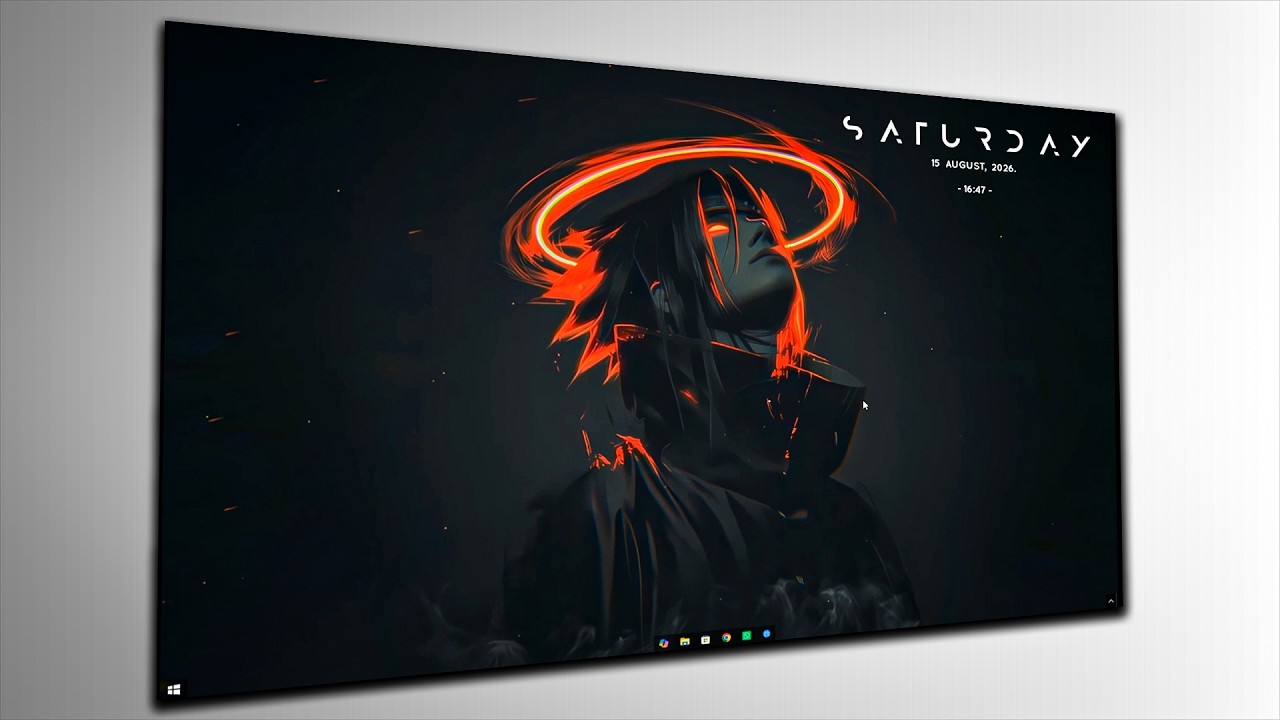
How to Make Your Windows Desktop Look Clean & Professional
Make your Windows desktop clean and professional with these simple customization settings. Follow the complete step-by-step guide.
Fix the “Time synchronization failed” error in Windows 10 by checking time settings, restarting Windows Time, and forcing a safe clock resync.
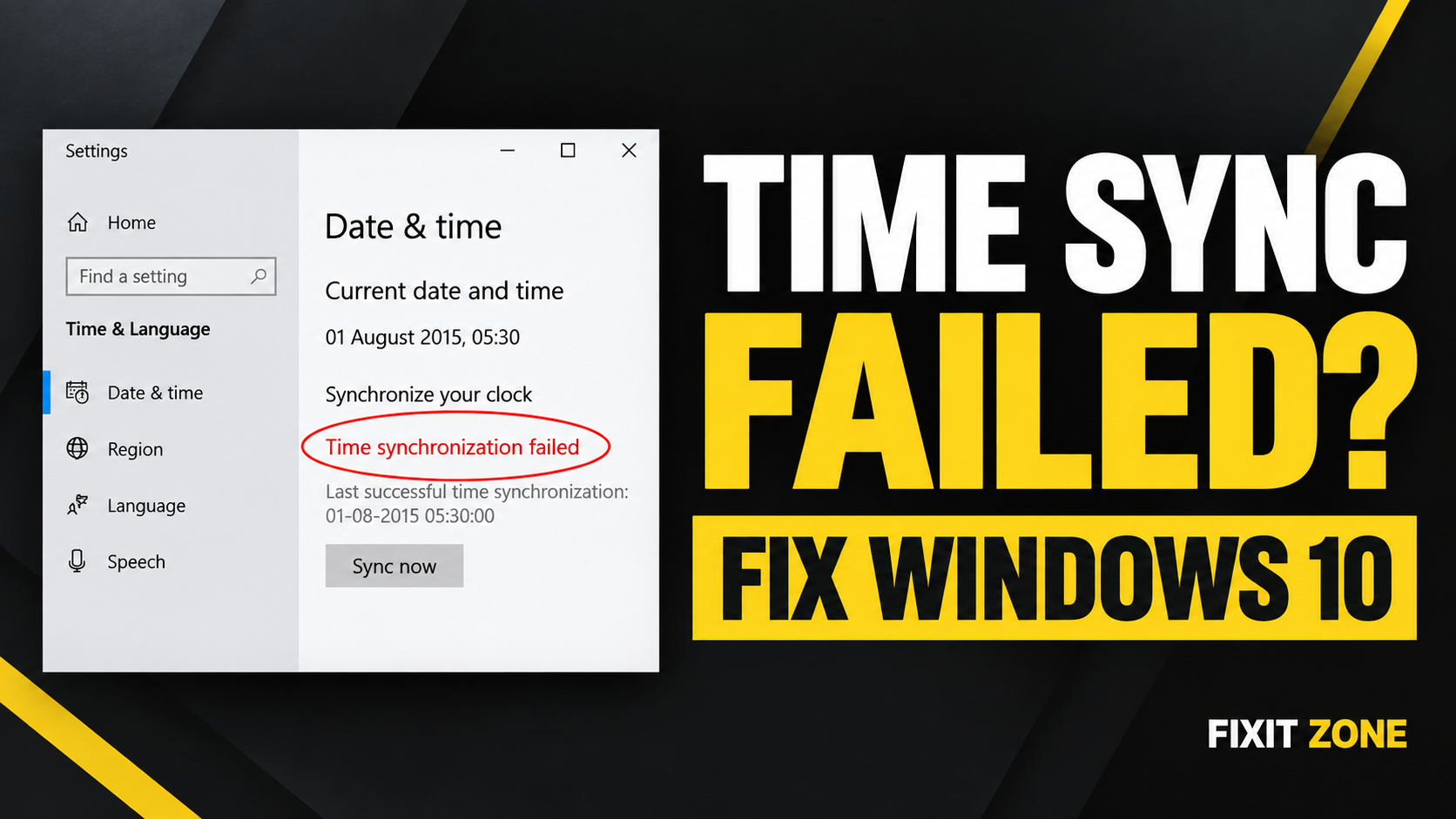
THE SHORT VERSION
Turn on automatic time, check the time zone, restart Windows Time, then use w32tm to request a fresh clock sync.
If Windows 10 shows “Time synchronization failed” when you click Sync now, your PC clock may remain incorrect or stop updating automatically.
This can cause wrong file dates, browser certificate warnings, Microsoft Store issues, Windows Update problems, and sign-in errors. The good news is that you can usually fix it using built-in Windows settings. No extra software is needed.
QUICKFIX!
Turn on Set time automatically, confirm your time zone, then restart the Windows Time service and run a manual sync.
Make sure your PC is connected to the internet. Also check that you are using the correct country and time zone. If your computer belongs to a workplace, school, or organization, stop before changing advanced time settings and ask your IT administrator.
IMPORTANT!
The commands in this guide must be run from Command Prompt as Administrator.
If Windows shows the same error again, continue with the next method.
TIP!
If your clock is only wrong by a few hours, the issue is often the selected time zone rather than the Windows Time service.
The Windows Time service controls clock synchronization in Windows. Restarting it can clear a temporary service problem.
services.msc and press Enter.If Restart is unavailable, choose Start instead.
Now return to Settings → Time & Language → Date & time and click Sync now again.
INFO!
On some PCs, Windows Time may start only when Windows needs it. That is normal. The important part is that the service can start and complete synchronization.
If Settings still says Time synchronization failed, you can restart the Windows Time service and request a new sync manually.
net stop w32time
net start w32time
w32tm /resync
The first command stops the Windows Time service. The second starts it again. The final command asks Windows to synchronize the clock immediately.
SUCCESS!
If the command completes without an error, open Date & time settings again and check whether the correct time is now displayed.
You can also check whether Windows has a time source and synchronization details available.
Open Command Prompt as Administrator, then run:
w32tm /query /status
Look for a recent sync time and a valid source. If the command reports an error, copy the exact message before trying random fixes.
Try these checks before making bigger changes:
WARNING!
Do not change registry values, random time servers, or domain settings unless you understand why they are needed. A managed work or school PC may rely on its own approved time source.
The error can appear when automatic time is disabled, the time zone is incorrect, the Windows Time service is not running properly, or the PC cannot reach its configured time source.
It can fix common software and service-related clock problems. If the time resets after every shutdown, the issue may be hardware-related, such as a weak CMOS battery.
No. Windows 10 already includes the settings and Windows Time service needed for this fix.
w32tm /resync safe?It is a built-in Windows command that requests a new time synchronization. Run it from an Administrator Command Prompt and read any error message it returns.
After completing the steps, restart your PC once and confirm that the correct date, time, and time zone remain in place. If the error returns, keep a screenshot of the message and the output from w32tm /query /status so you can troubleshoot the exact cause more safely.
Sources and references used for the procedures in this guide. Screens and wording may change.
Microsoft Learn: Windows Time Service tools and settingsMicrosoft Support: Troubleshoot problems updating WindowsA step looks different? Report a correction. Guidance is general and does not replace your device manufacturer’s advice.
KEEP YOUR MOMENTUM
Make your Windows desktop clean and professional with these simple customization settings. Follow the complete step-by-step guide.
Fix 100% Disk Usage in Windows 10/11 with easy steps. Disable services, optimize drive, and boost PC performance quickly and safely.
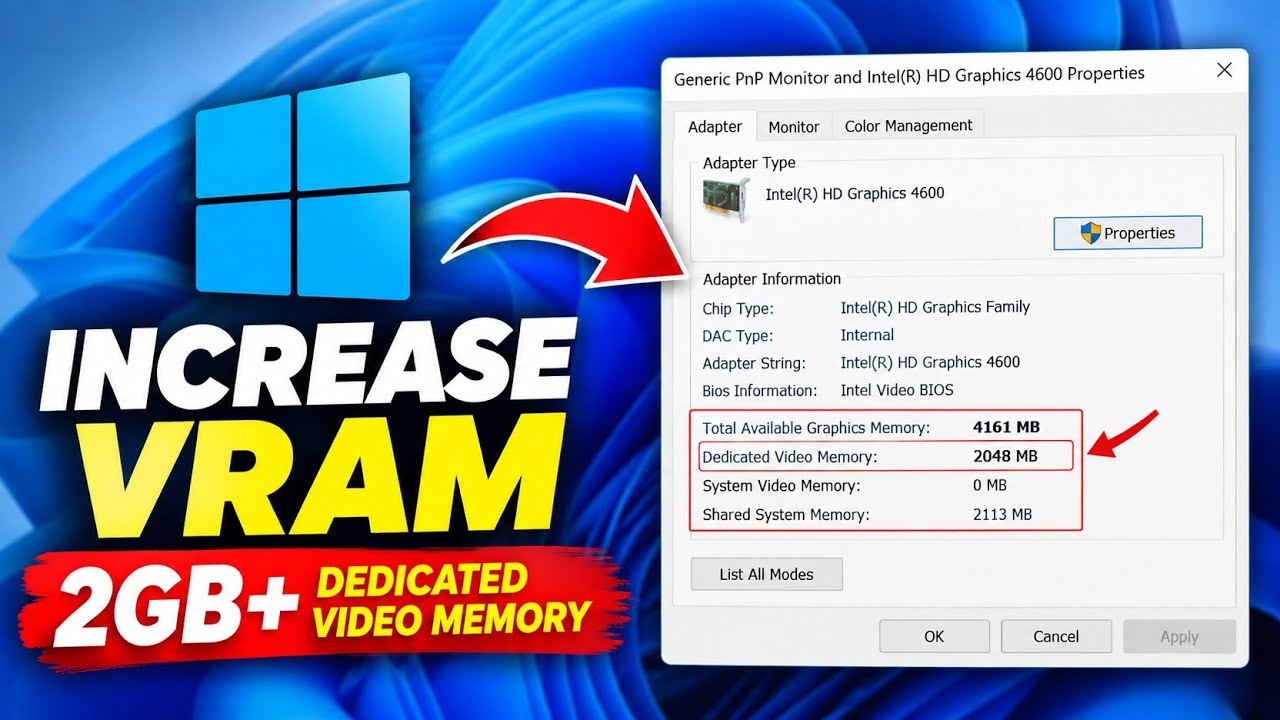
Learn how to increase reported VRAM on Intel HD Graphics without software using Registry Editor, plus what this means for FPS