

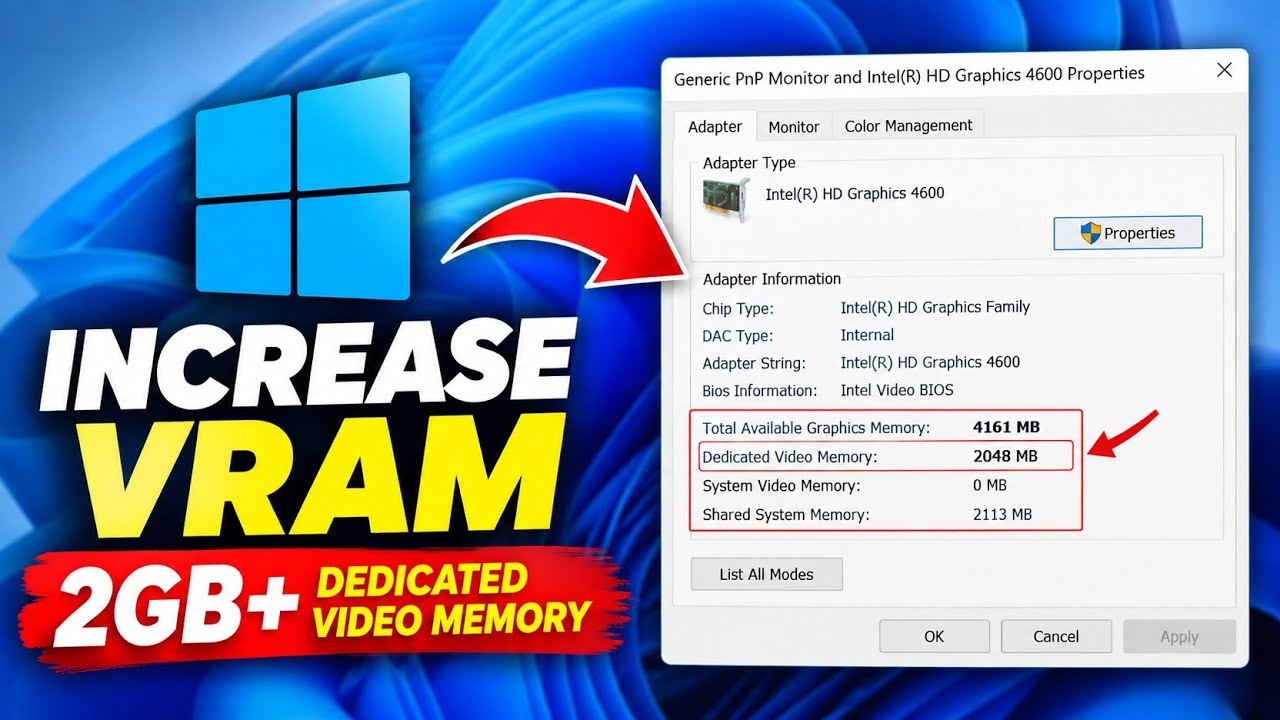
How to Increase VRAM on Intel HD Graphics Without Software | Boost FPS & PC Performance
Learn how to increase reported VRAM on Intel HD Graphics without software using Registry Editor, plus what this means for FPS
Fix 100% Disk Usage in Windows 10/11 with easy steps. Disable services, optimize drive, and boost PC performance quickly and safely.
THE SHORT VERSION
Fix 100% Disk Usage in Windows 10/11 with easy steps. Disable services, optimize drive, and boost PC performance quickly and safely.
If your Windows PC is showing 100% disk usage in Task Manager and your system feels extremely slow, freezes randomly, or takes too long to open programs, you’re not alone. This is a very common issue, especially on systems using HDD drives.
In this guide, I will show you safe and effective methods to reduce or completely fix the 100% disk usage problem in Windows.
You can also watch the full video tutorial below for a visual guide.
High disk usage usually happens because of:
• Background Windows services
• Corrupted system files
• Bad sectors on the hard drive
• Too many startup applications
• Frequent background optimization
Let’s fix it step by step.
SysMain (formerly Superfetch) runs in the background and preloads applications into memory. On low-end systems or HDD drives, it can cause very high disk activity.
• Reduces background disk usage• Improves system responsiveness• Safe for most users
There is no major risk in disabling this service.
This service manages device communication and syncing features. Most users don’t need it constantly running.
• Reduces unnecessary background processes• Helps lower disk usageIt is generally safe to disable unless you rely heavily on device syncing features.
Frequent automatic optimization can increase disk usage in the background.
• Reduces automatic background disk activity• Gives better manual control
This step is especially helpful for HDD users.
Corrupted files and bad sectors are common causes of 100% disk usage. Running CHKDSK can scan and repair these errors.
chkdsk C: /f /r• Windows will scan the drive• It will check for file system errors• It will detect bad sectors• It will automatically fix issues if possible
The process may take some time depending on your drive size. Do not turn off your PC during this process.
Too many startup programs increase background usage and slow down your system.
You can enable them again anytime later.
• Faster boot time• Lower background disk activity• Better overall performance
By following all the methods above, you should be able to significantly reduce or completely fix the 100% disk usage problem in Windows.
If the issue still persists, your hard drive may be physically damaged and replacing it with an SSD is highly recommended for better performance.
If this guide helped you, consider sharing it with others who might be facing the same issue.
A step looks different? Report a correction. Guidance is general and does not replace your device manufacturer’s advice.
KEEP YOUR MOMENTUM
Learn how to increase reported VRAM on Intel HD Graphics without software using Registry Editor, plus what this means for FPS
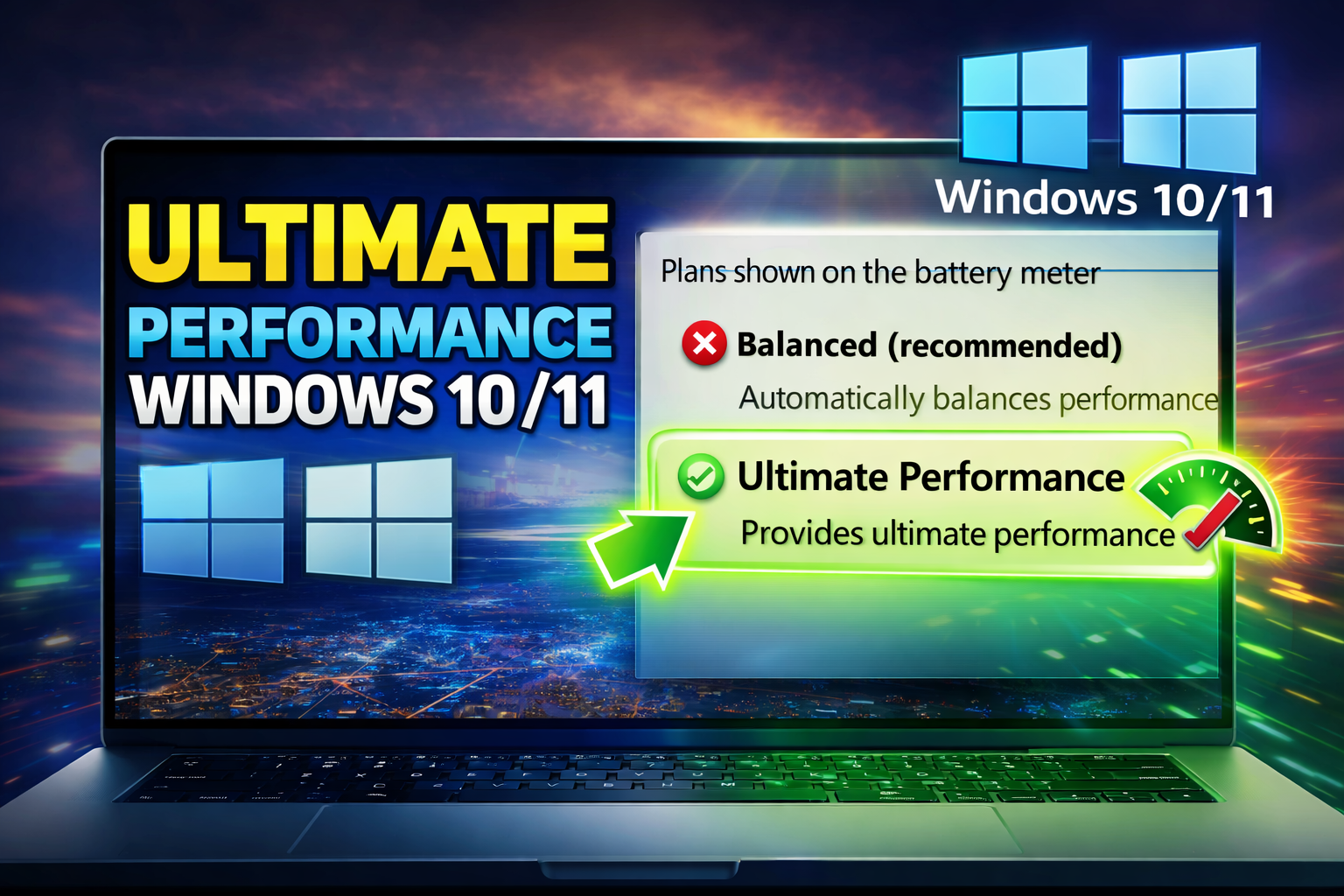
Enable Ultimate Performance Power Plan in Windows to boost FPS, reduce lag, and unlock maximum system performance safely.
Make your Windows desktop clean and professional with these simple customization settings. Follow the complete step-by-step guide.