

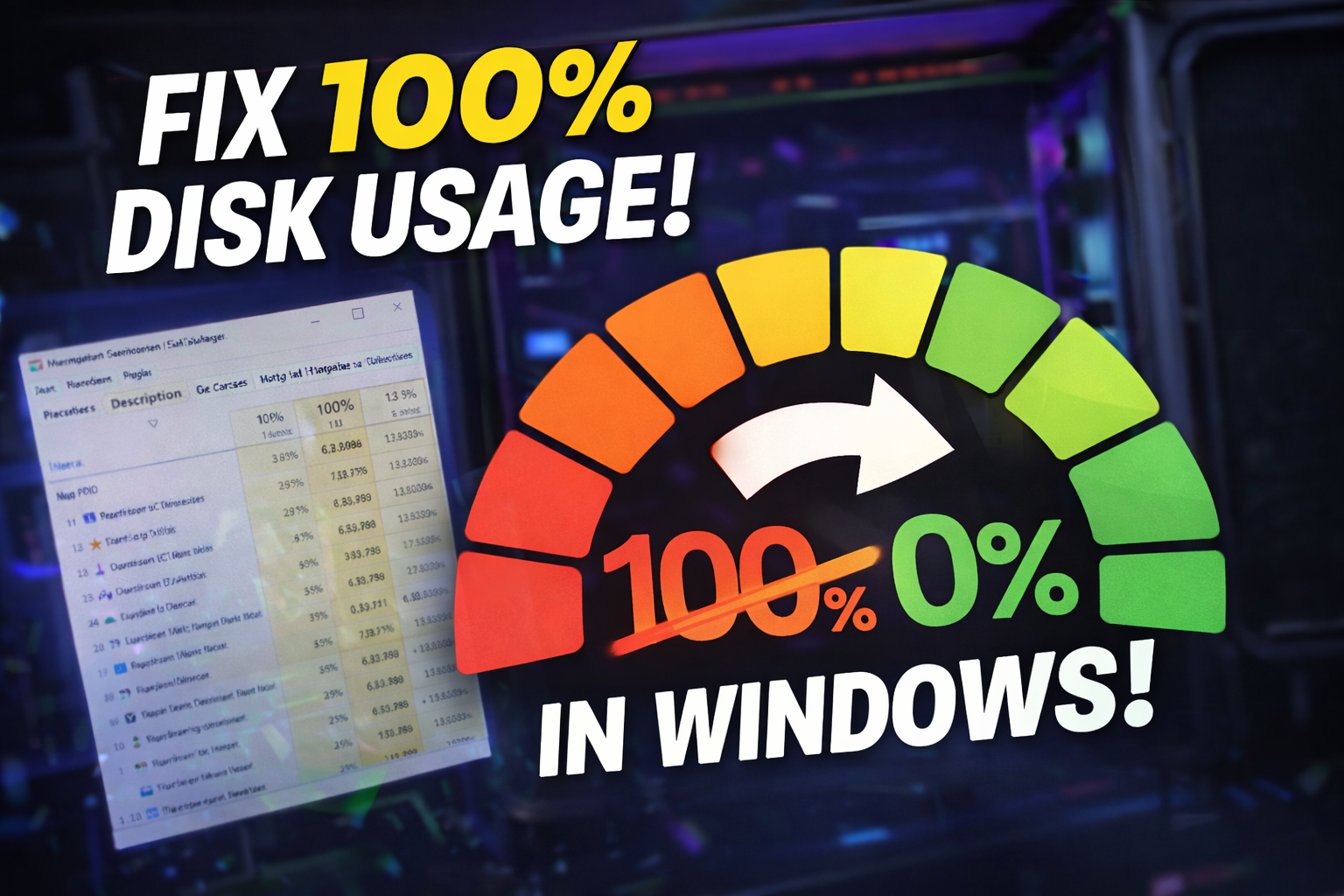
How To Fix 100% Disk Usage in Windows 10/11 (2026 Working Method)
Fix 100% Disk Usage in Windows 10/11 with easy steps. Disable services, optimize drive, and boost PC performance quickly and safely.
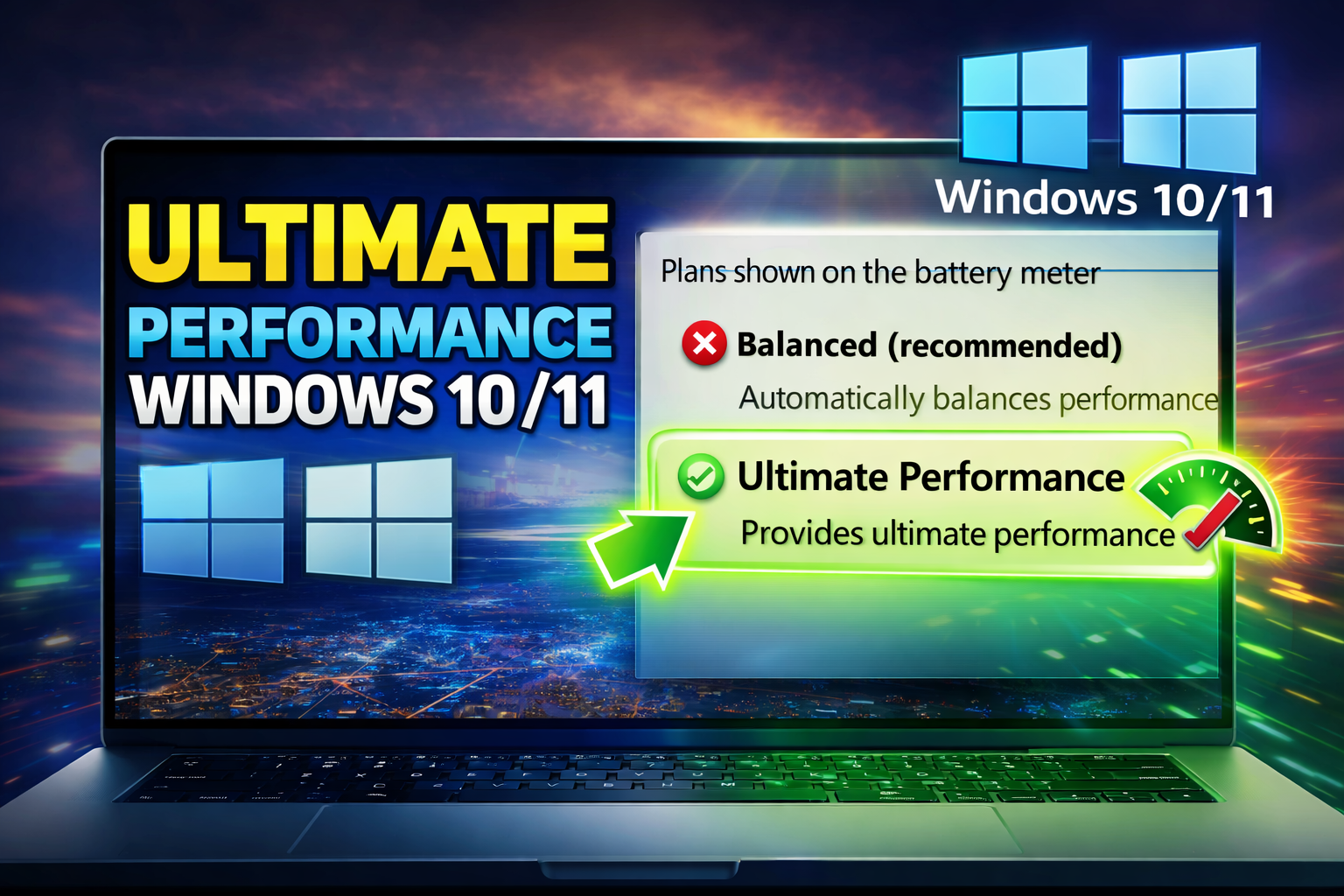
Enable Ultimate Performance Power Plan in Windows to boost FPS, reduce lag, and unlock maximum system performance safely.
THE SHORT VERSION
Enable Ultimate Performance Power Plan in Windows to boost FPS, reduce lag, and unlock maximum system performance safely.
Ultimate Performance Power Plan is a hidden Windows power mode designed to deliver maximum system performance. It removes aggressive power-saving limits that can reduce CPU and GPU responsiveness.
By default, this plan is not visible for most users, but it can be enabled safely using a simple Windows command.
This power plan is useful for:
● Gaming and reducing FPS drops
● Video editing and rendering
● Heavy multitasking
● Low-end or mid-range PCs that suffer from stutters
It does not overclock your hardware. It simply allows Windows to use your hardware without unnecessary restrictions.
The following command enables the Ultimate Performance power plan in Windows:
powercfg -duplicatescheme e9a42b02-d5df-448d-aa00-03f14749eb61What this command does:
● Adds the hidden Ultimate Performance plan
● Does not delete any files
● Does not modify the registry
● Does not harm Windows
If you do not like it, you can switch back to Balanced mode anytime.
Follow these steps carefully:
Quick Steps:
● Right-click the Start menu
● Select Terminal (Admin) or Command Prompt (Admin)
● Paste this command:
powercfg -duplicatescheme e9a42b02-d5df-448d-aa00-03f14749eb61● Press Enter
● Open Control Panel
● Go to Power Options
● Click Show Additional Plans
● Select Ultimate Performance
That’s it. Your system is now running at maximum performance.
● Reduced CPU throttling
● More stable FPS in games
● Faster application response
● Less background lag
● Improved performance in editing software
● Better overall system responsiveness
This tweak does not create extra performance out of thin air. It unlocks the performance your hardware already has.
Yes, it is safe when used correctly.
Important facts:
● It does not damage hardware
● It does not overclock components
● It does not increase voltage manually
Things to keep in mind:
● Laptop battery will drain faster
● Heat output may increase slightly
● Systems with poor cooling should avoid long sessions
Desktop users with proper cooling will not face issues.
Recommended for:
● Gamers
● Video editors
● Streamers
● Performance-focused users
Not recommended for:
● Battery-only laptop usage
● Silent or power-saving setups
● Basic office tasks
Yes.
You can switch back anytime by:
● Opening Power Options
● Selecting Balanced or any other plan
No permanent changes are made to your system.
Ultimate Performance Power Plan is a simple but powerful Windows tweak. It improves system responsiveness, reduces lag, and helps achieve more stable performance.
If you want maximum output from your PC without risky tweaks, this is worth enabling.
A step looks different? Report a correction. Guidance is general and does not replace your device manufacturer’s advice.
KEEP YOUR MOMENTUM
Fix 100% Disk Usage in Windows 10/11 with easy steps. Disable services, optimize drive, and boost PC performance quickly and safely.
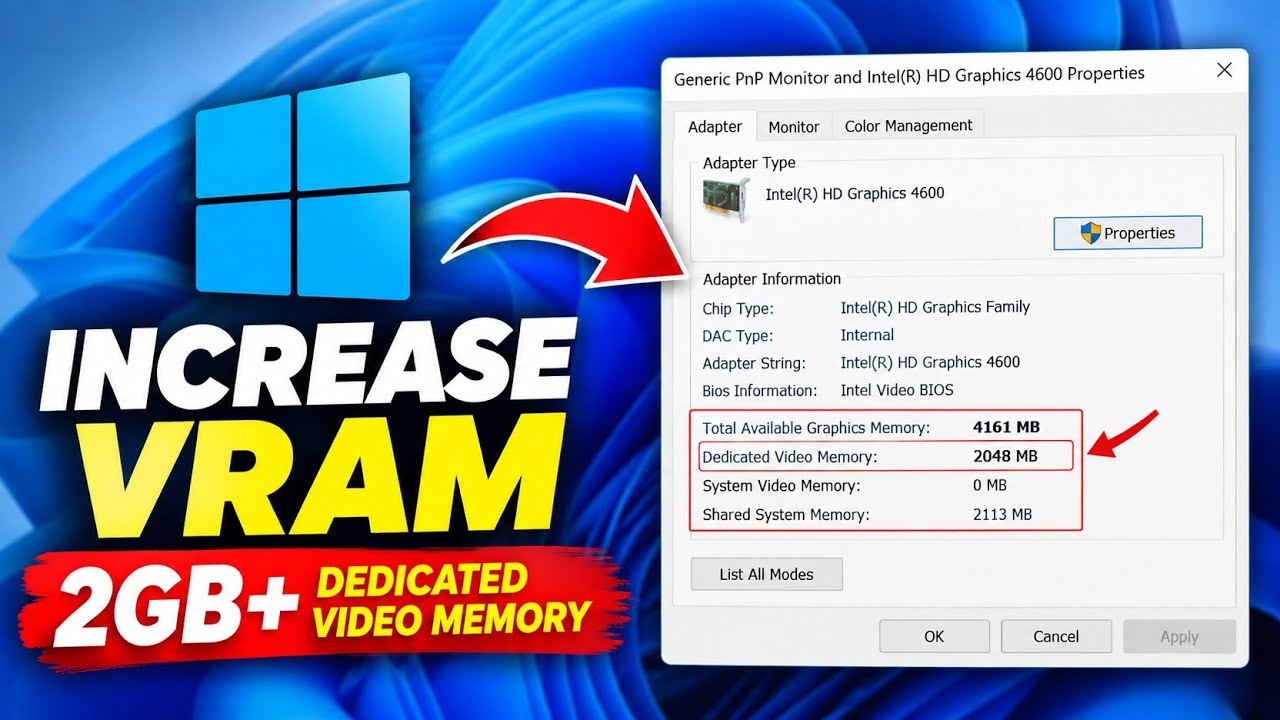
Learn how to increase reported VRAM on Intel HD Graphics without software using Registry Editor, plus what this means for FPS
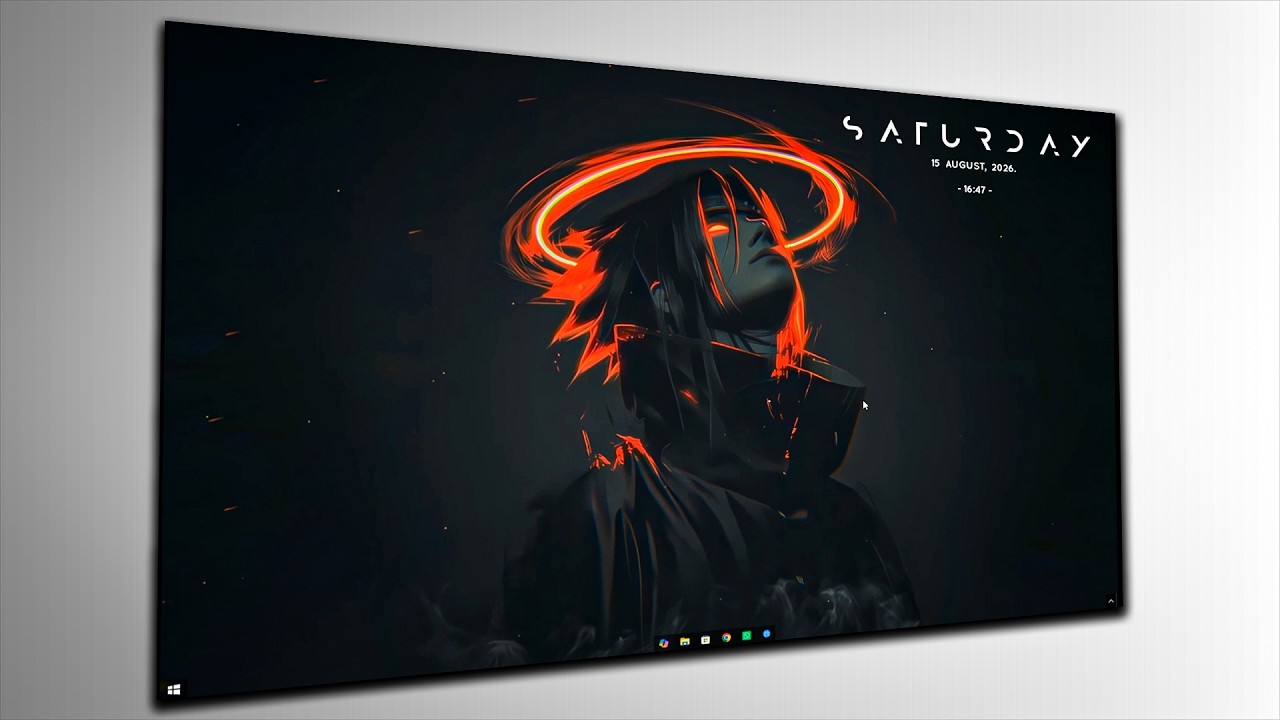
Make your Windows desktop clean and professional with these simple customization settings. Follow the complete step-by-step guide.