

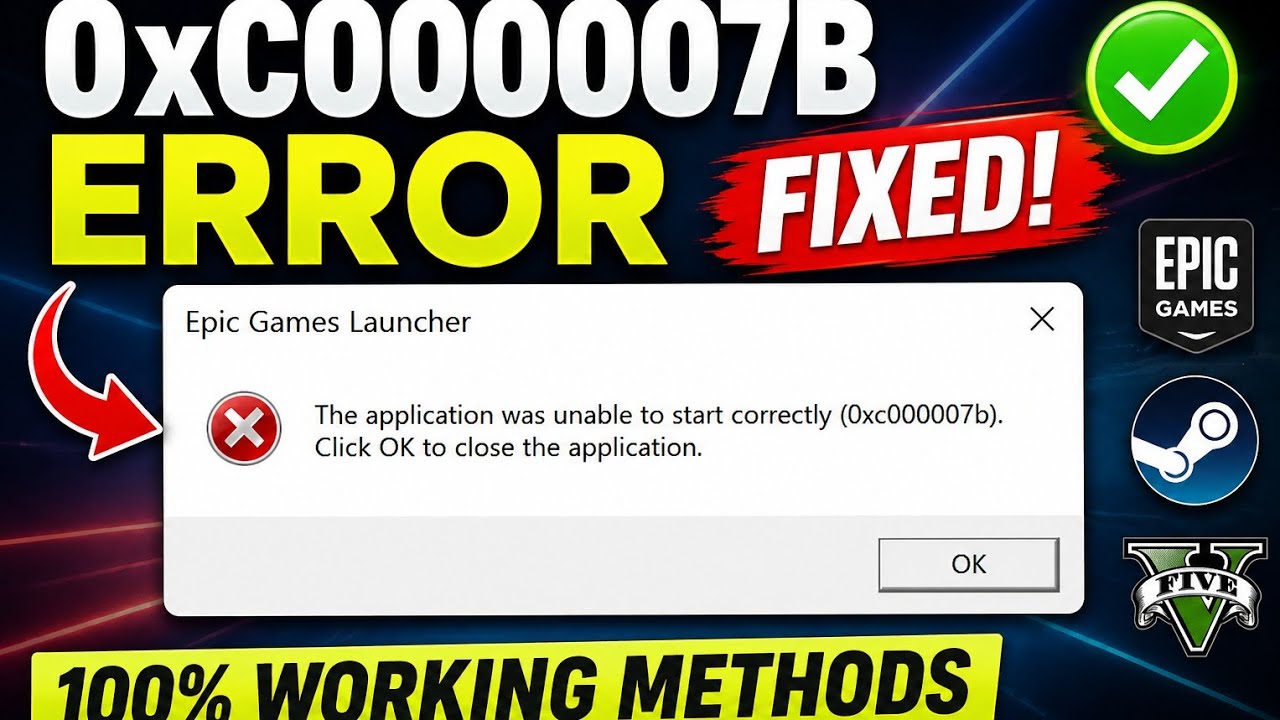
How to Fix 0xc00007b Error in Windows 11/10
Fix 0xc00007b application error in Windows 10 & 11 using SFC Scan, DirectX and Visual C++ Redistributable. Easy 2026 working guide.
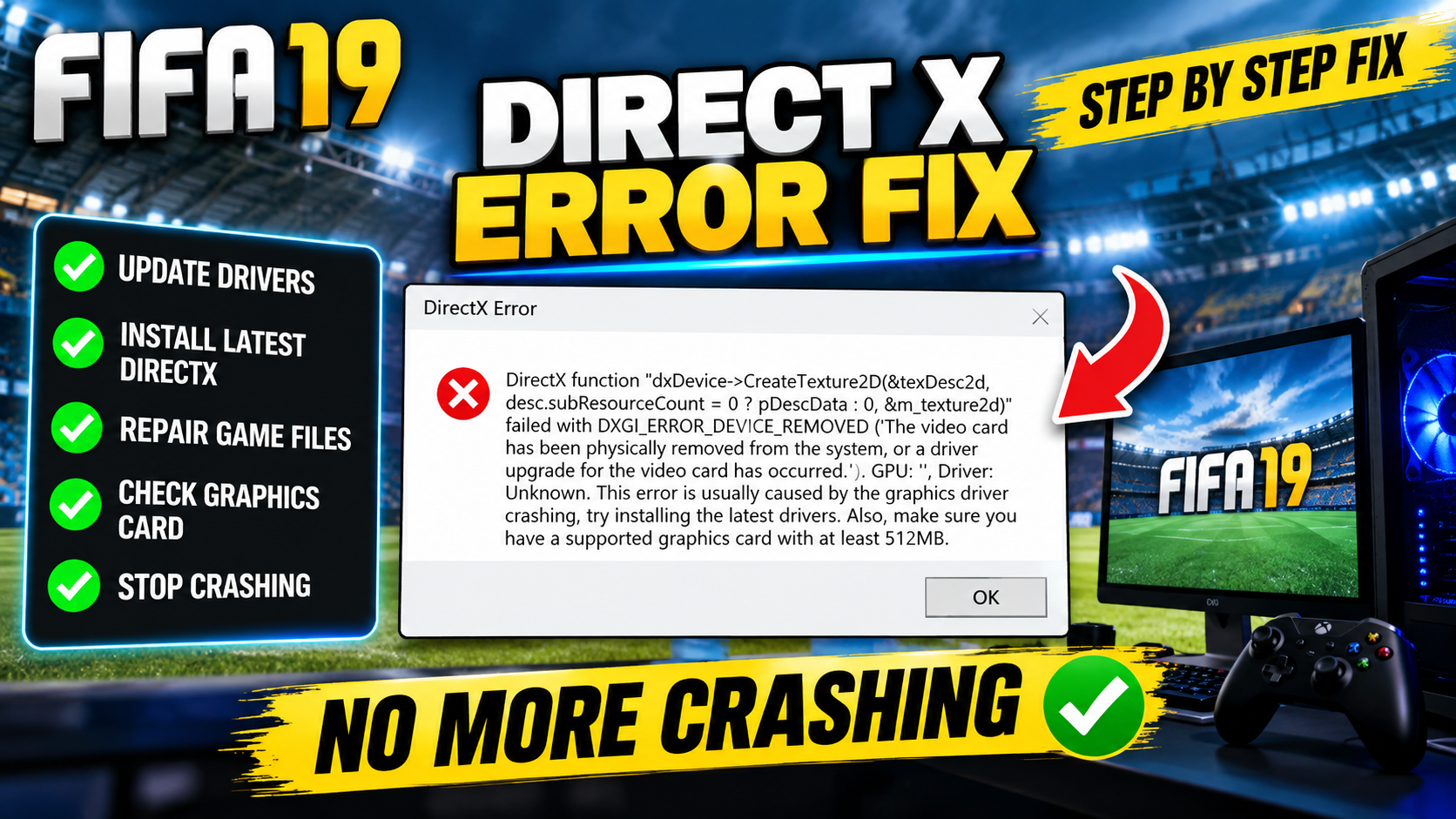
Fix FIFA 19 DirectX GetDeviceRemovedReason error on PC. Step-by-step registry fix to stop crashes on Windows 10 & 11.
THE SHORT VERSION
If you are facing the FIFA 19 DirectX error or the GetDeviceRemovedReason crash, this guide will help you fix it step by step. This problem usually appears when launching the game or during gameplay and forces FIFA 19 to close suddenly.
If you are facing the FIFA 19 DirectX error or the GetDeviceRemovedReason crash, this guide will help you fix it step by step. This problem usually appears when launching the game or during gameplay and forces FIFA 19 to close suddenly.
This method uses a Registry Editor fix and works especially well on Windows 10 and Windows 11, including low-end or older GPUs.
You may see an error like:
- DirectX Error
- DXGI_ERROR_DEVICE_REMOVED
- GetDeviceRemovedReason
- FIFA 19 crashing on startup or mid-game
This error is mostly related to GPU timeout detection or unstable graphics driver behavior.
Windows has a built-in feature called TDR (Timeout Detection and Recovery). When your GPU takes too long to respond, Windows forcefully resets it. In FIFA 19, this often causes DirectX crashes even when the GPU is not actually faulty.
By disabling this behavior, we can stop FIFA 19 from crashing.
Editing the registry incorrectly can cause system issues.
✔ Follow every step carefully
✔ Do not change anything other than what is shown
✔ Restart your PC after applying the fix
1 - Press Windows + R on your keyboard
2 - Type regedit and press Enter
3 - Click Yes if User Account Control appears
In Registry Editor, go to the following location:
HKEY_LOCAL_MACHINE\SYSTEM\CurrentControlSet\Control\GraphicsDrivers
Make sure you open the exact same path.
1- Right-click on an empty area in the right panel
2- Click New → DWORD (32-bit) Value
3- Rename the new value to: TdrLevel
⚠ The spelling must be exactly the same. If the name is incorrect, this fix will not work.
1- Double-click on TdrLevel
2- Set Value data to: 0
3- Click OK to save
Close Registry Editor and restart your computer.
After reboot, launch FIFA 19 and the DirectX / GetDeviceRemovedReason error should be fixed.
Yes. This method is widely used on:
1- Low-end graphics cards
2- Older NVIDIA / AMD GPUs
3- Systems with limited VRAM
It prevents unnecessary GPU resets caused by Windows.
If FIFA 19 still crashes, try these additional steps:
1- Update your GPU drivers
2- Run FIFA 19 as administrator
3- Disable overlays (Discord, GeForce Experience, etc.)
4- Make sure DirectX is fully installed
This is a simple but effective fix for the FIFA 19 DirectX crash and GetDeviceRemovedReason error. If you followed the steps correctly, your game should now run without crashing.
For more PC fixes, Windows tutorials, and gaming performance guides, check other posts linked on this site.
Disclaimer: This guide is for educational purposes only. Apply changes at your own risk.
A step looks different? Report a correction. Guidance is general and does not replace your device manufacturer’s advice.
KEEP YOUR MOMENTUM
Fix 0xc00007b application error in Windows 10 & 11 using SFC Scan, DirectX and Visual C++ Redistributable. Easy 2026 working guide.
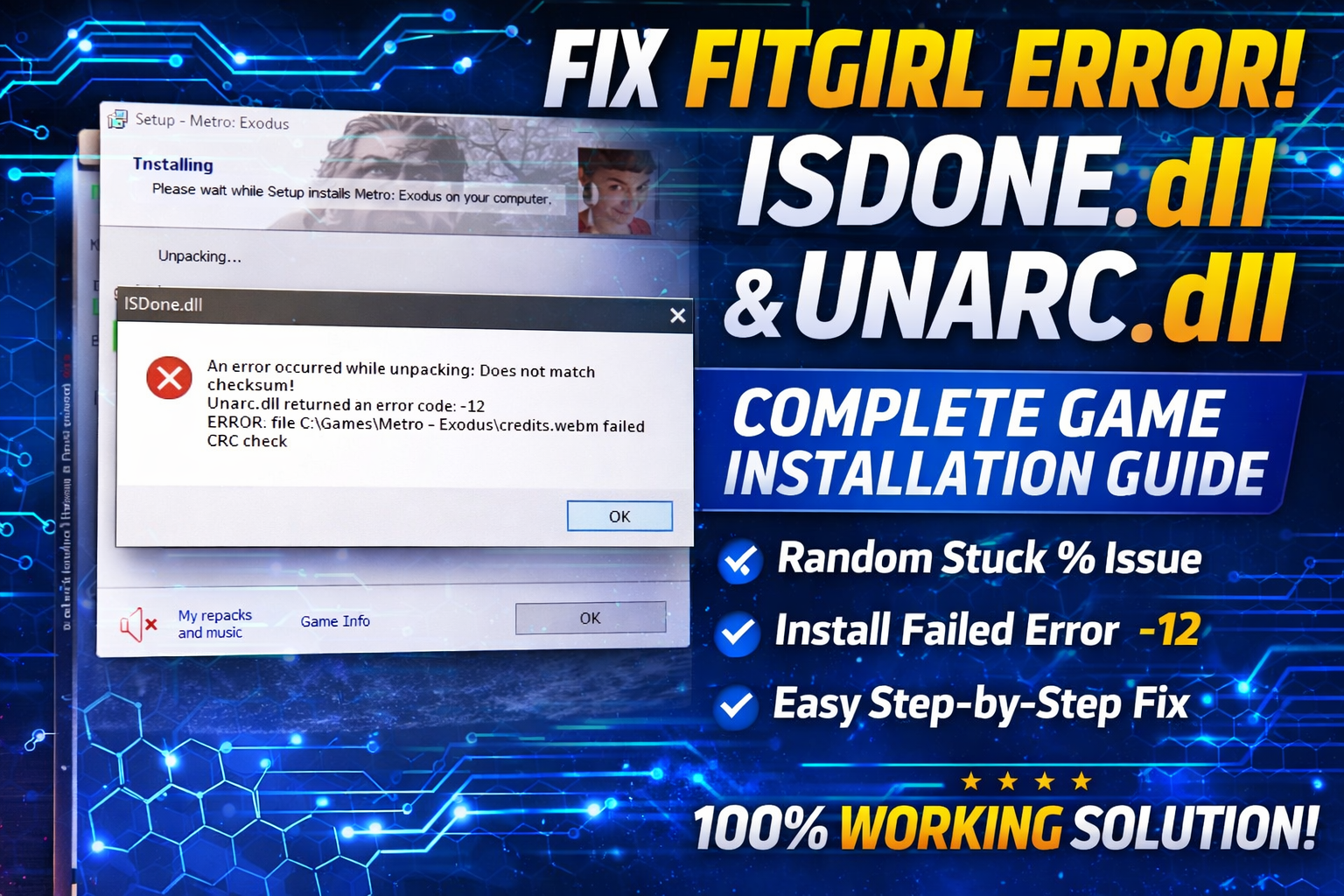
Fix FitGirl ISDone.dll & Unarc.dll error during game installation. Solve game stuck at random % with working 2026 methods.
Fix 100% Disk Usage in Windows 10/11 with easy steps. Disable services, optimize drive, and boost PC performance quickly and safely.