

How To Fix 100% Disk Usage in Windows 10/11 (2026 Working Method)
Fix 100% Disk Usage in Windows 10/11 with easy steps. Disable services, optimize drive, and boost PC performance quickly and safely.
Learn how to increase reported VRAM on Intel HD Graphics without software using Registry Editor, plus what this means for FPS
THE SHORT VERSION
Learn how to increase reported VRAM on Intel HD Graphics without software using Registry Editor, plus what this means for FPS
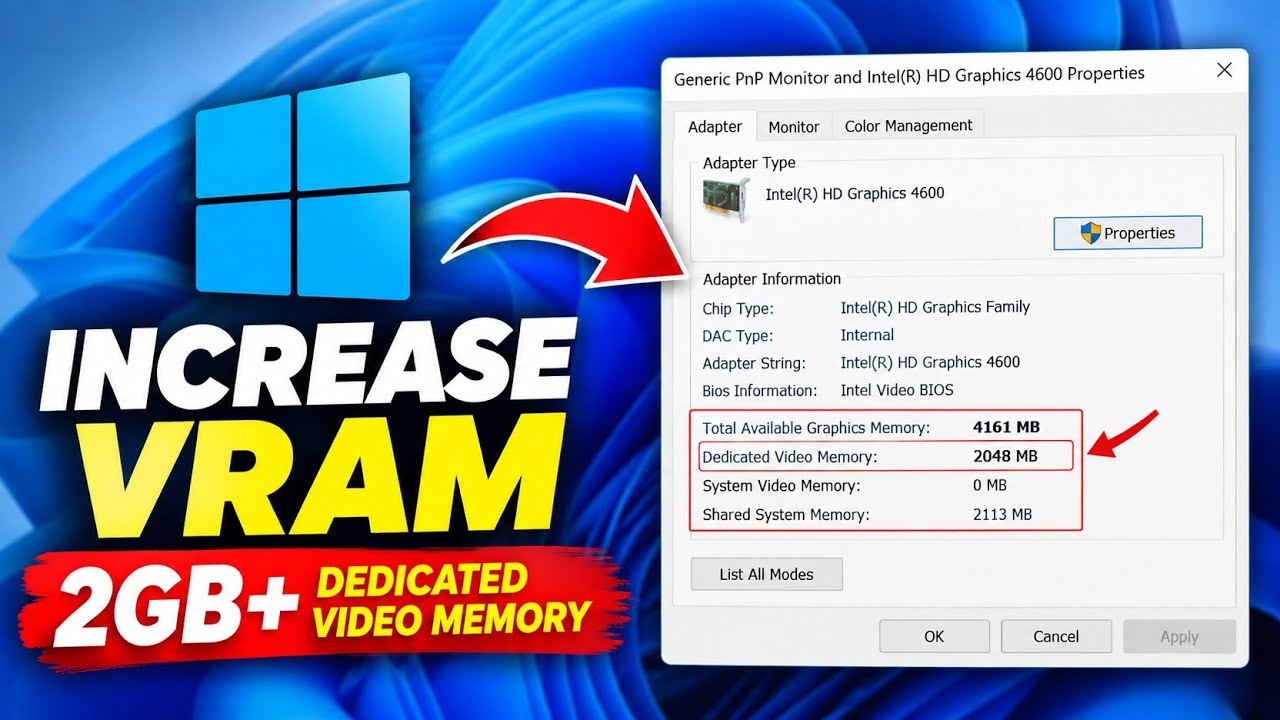
If you’re using Intel HD Graphics or another Intel integrated graphics solution and you’re seeing a low Dedicated Video Memory value in Windows, you may be wondering if there’s a way to increase it without installing third-party software.
In this guide, I’ll show you how to check your current graphics memory and how to create the GMM registry entry with DedicatedSegmentSize. I’ll also explain what this change actually does and whether it can really improve gaming performance.
Important: This method does not physically add VRAM to an Intel integrated GPU. Intel integrated graphics use shared system memory rather than having a separate physical VRAM chip. Changing the reported Dedicated Video Memory value does not guarantee an FPS increase.
If you prefer watching the complete process, check out the video. The tutorial shows each step from checking the current video memory to creating the required Registry entry.
Before changing anything, it’s a good idea to check your current graphics memory value.
On many Intel integrated graphics systems, Windows may show a relatively small Dedicated Video Memory value even though the system has much more RAM available to the graphics processor.
Before making any Registry changes, make sure your graphics driver is working correctly.
If Windows reports that the best driver is already installed, you can continue with the next step.
Now we’ll create a Registry entry called DedicatedSegmentSize. Follow the path carefully because the Windows Registry contains important system settings.
Press Windows + R on your keyboard to open the Run dialog.
Type:
regedit
Press Enter. If Windows asks for administrator permission, select Yes.
In Registry Editor, navigate through the following location:
HKEY_LOCAL_MACHINE → SOFTWARE → Intel
Once you find the Intel key, right-click it and select:
New → Key
Name the new key:
GMM
Make sure the name is exactly GMM.
Select the newly created GMM key.
On the right side of Registry Editor, right-click an empty area and select:
New → DWORD (32-bit) Value
Name the value:
DedicatedSegmentSize
Make sure there are no spaces in the name and that you type it exactly as shown above.
Right-click DedicatedSegmentSize and select Modify.
You can then enter the value you want to test. For example:
| System RAM | Example Value | Approx. Reported Memory |
|---|---|---|
| 2 GB | 256 | 256 MB |
| 4 GB | 512 | 512 MB |
| 8 GB | 1024 | 1024 MB |
| 16 GB | 2048 | 2048 MB |
For example, if you’re testing this with a system that has 16 GB of RAM, you can enter 2048.
Click OK after entering the value.
After making the Registry change, close Registry Editor and restart your computer.
Once Windows starts again, return to:
Display Settings → Advanced Display → Display Adapter Properties
Check the Dedicated Video Memory value again and see whether Windows is reporting a different value.
This is the most important part to understand. Intel integrated graphics do not have a separate physical VRAM bank like many dedicated graphics cards. Instead, they use system RAM through shared memory.
Because of this, changing the reported Dedicated Video Memory value does not magically add physical VRAM to the graphics hardware. It also does not guarantee better FPS in games.
Your actual gaming performance depends on several factors, including the Intel graphics processor, CPU, system RAM, memory speed, game settings, resolution, drivers, and the game itself.
The Windows Registry contains important configuration settings, so you should be careful when modifying it.
Double-check the Registry path and value name before making changes. If you’re not comfortable editing the Registry, create a restore point or back up the relevant Registry settings first.
The DedicatedSegmentSize method is mainly useful for testing how Windows reports dedicated graphics memory on certain Intel integrated graphics systems. It should not be treated as a guaranteed method for adding physical VRAM or dramatically increasing gaming FPS.
If you’re trying to improve gaming performance on an Intel integrated GPU, reducing game resolution and graphics settings, keeping your drivers updated, and making sure your system has enough fast RAM can be more meaningful than simply changing the reported VRAM value.
If this guide helped you, check out more Windows optimization, PC troubleshooting, gaming fixes, and performance tutorials on FixIt Zone.
A step looks different? Report a correction. Guidance is general and does not replace your device manufacturer’s advice.
KEEP YOUR MOMENTUM
Fix 100% Disk Usage in Windows 10/11 with easy steps. Disable services, optimize drive, and boost PC performance quickly and safely.
Enable Ultimate Performance Power Plan in Windows to boost FPS, reduce lag, and unlock maximum system performance safely.
Make your Windows desktop clean and professional with these simple customization settings. Follow the complete step-by-step guide.