

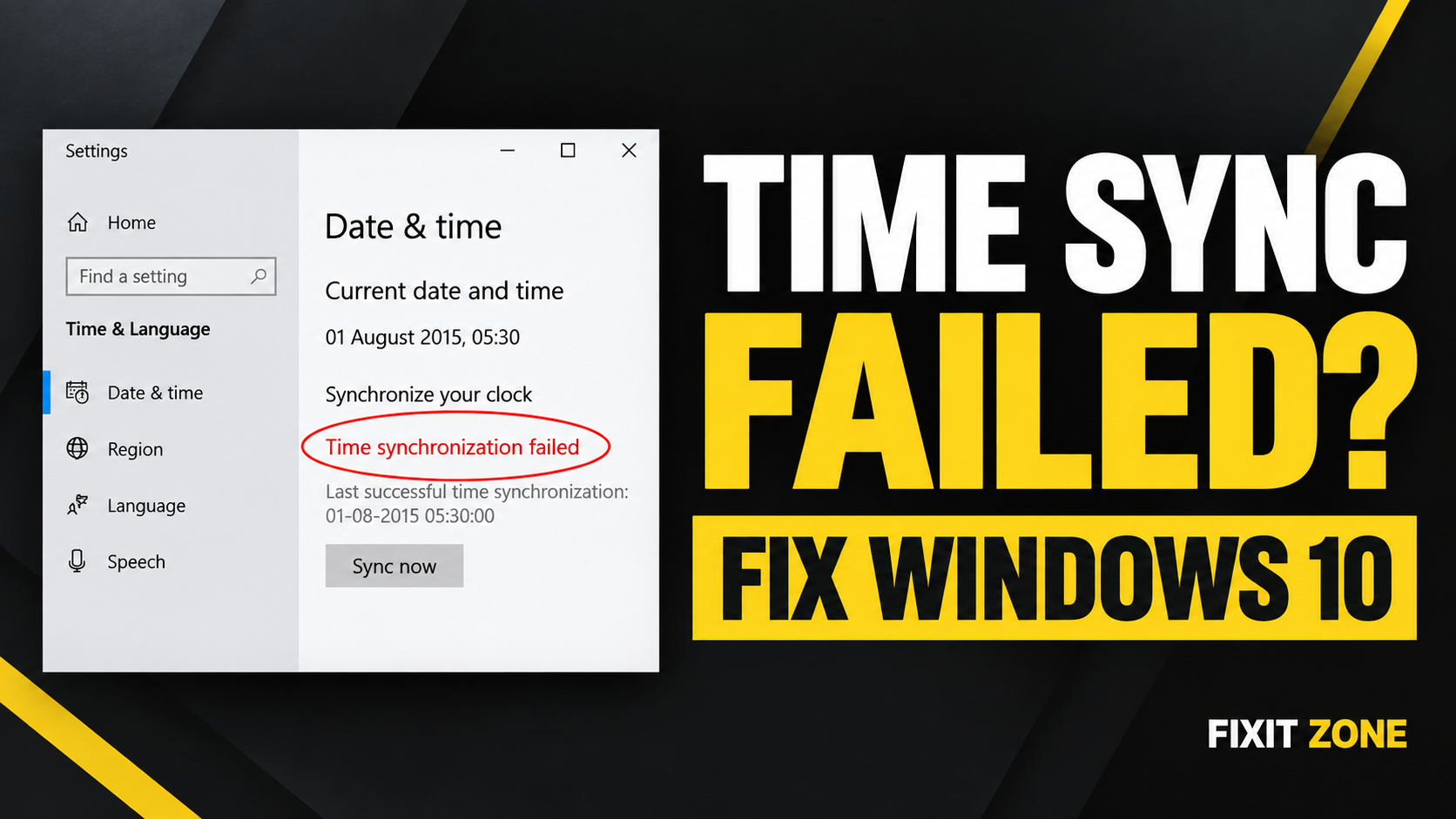
How to Fix “Time Synchronization Failed” in Windows 10
Fix the “Time synchronization failed” error in Windows 10 by checking time settings, restarting Windows Time, and forcing a safe clock resync.
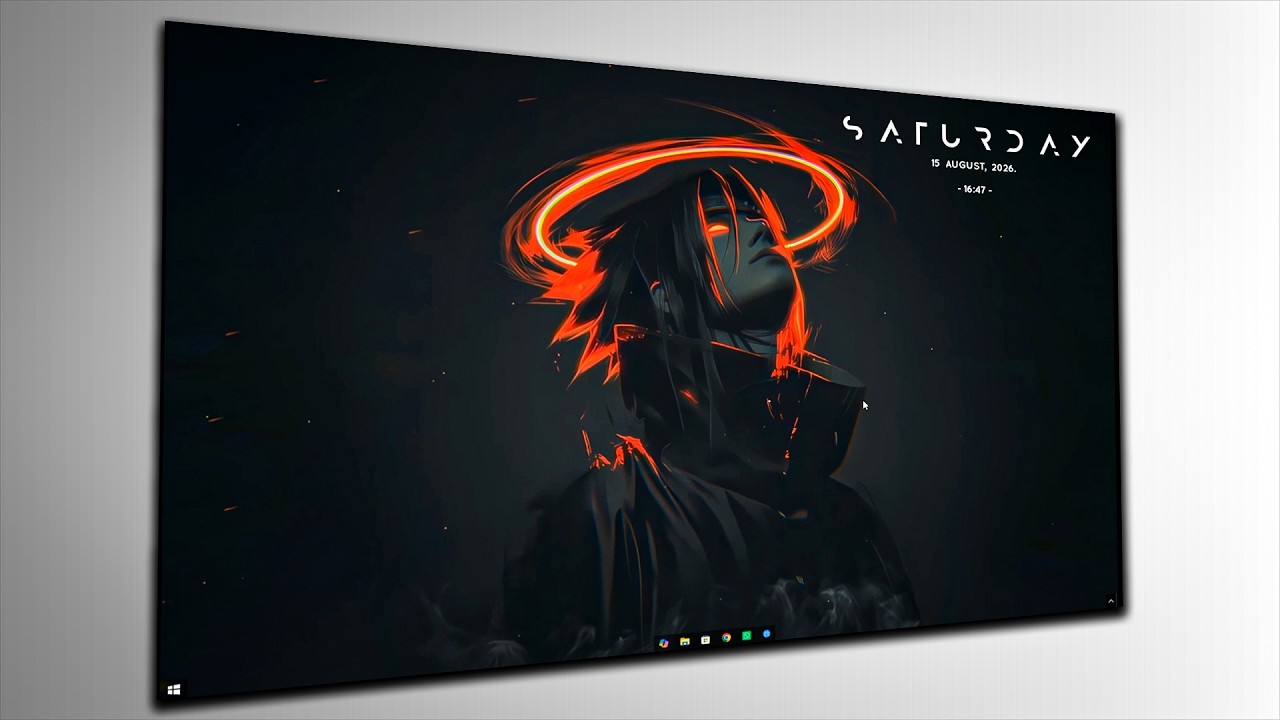
Make your Windows desktop clean and professional with these simple customization settings. Follow the complete step-by-step guide.
THE SHORT VERSION
Make your Windows desktop clean and professional with these simple customization settings. Follow the complete step-by-step guide.
A clean and professional desktop can make your Windows setup look much better and feel more organized.
In this guide, I’ll show you how to customize your Windows desktop using the settings and tools shown in the video. By following the steps carefully, you can create a cleaner, minimal, and more professional-looking desktop without making your setup complicated.
Watch the full tutorial first and then follow the steps below.
Everything used in this desktop customization is listed below.
(download link is given below)
Before starting the customization, clean your desktop and remove unnecessary shortcuts, files, and folders.
A clean starting point will make the final result look much better.
You can keep only the applications and shortcuts that you actually use regularly.
Now start applying the customization settings shown in the video.
Make sure you follow each setting carefully rather than changing random options.
The goal is to create a simple setup with:
Next, apply the appearance settings demonstrated in the tutorial.
Depending on your Windows version, some settings may be located in slightly different places.
Take your time with this step and make sure the settings match the tutorial.
Now apply the wallpaper and other visual resources used in the setup.
A good wallpaper can completely change the appearance of your desktop, especially when combined with a clean layout.
You can download the resources from the links provided above.
Once the visual customization is complete, organize your desktop so that unnecessary icons don’t distract from the setup.
Keep your most-used applications easily accessible while keeping the main desktop clean.
This gives the desktop a much more minimal and professional appearance.
There are several additional settings shown throughout the video.
Don’t skip these steps.
Some of the final appearance depends on applying all of the settings together. If you only apply a few of them, your desktop may not look exactly like the final result.
After completing all the steps, your Windows desktop should have a much cleaner, more organized, and professional appearance.
You can also customize the setup further by using your own wallpaper, colors, icons, and other preferences.
The important thing is to keep the overall design simple and avoid adding too many unnecessary elements.
If you run into any problem while following this guide, leave a comment on the YouTube video or contact FixIt Zone.
I’ll try to help you find a solution.
FixIt Zone provides practical guides for:
Fix it. Optimize it. Get back to work.
Sources and references used for the procedures in this guide. Screens and wording may change.
Wallpaper LinkEach resource is clearly labelled and opens on its destination page. Nothing downloads automatically.
Windows Customization PackA step looks different? Report a correction. Guidance is general and does not replace your device manufacturer’s advice.
KEEP YOUR MOMENTUM
Fix the “Time synchronization failed” error in Windows 10 by checking time settings, restarting Windows Time, and forcing a safe clock resync.
Fix 100% Disk Usage in Windows 10/11 with easy steps. Disable services, optimize drive, and boost PC performance quickly and safely.
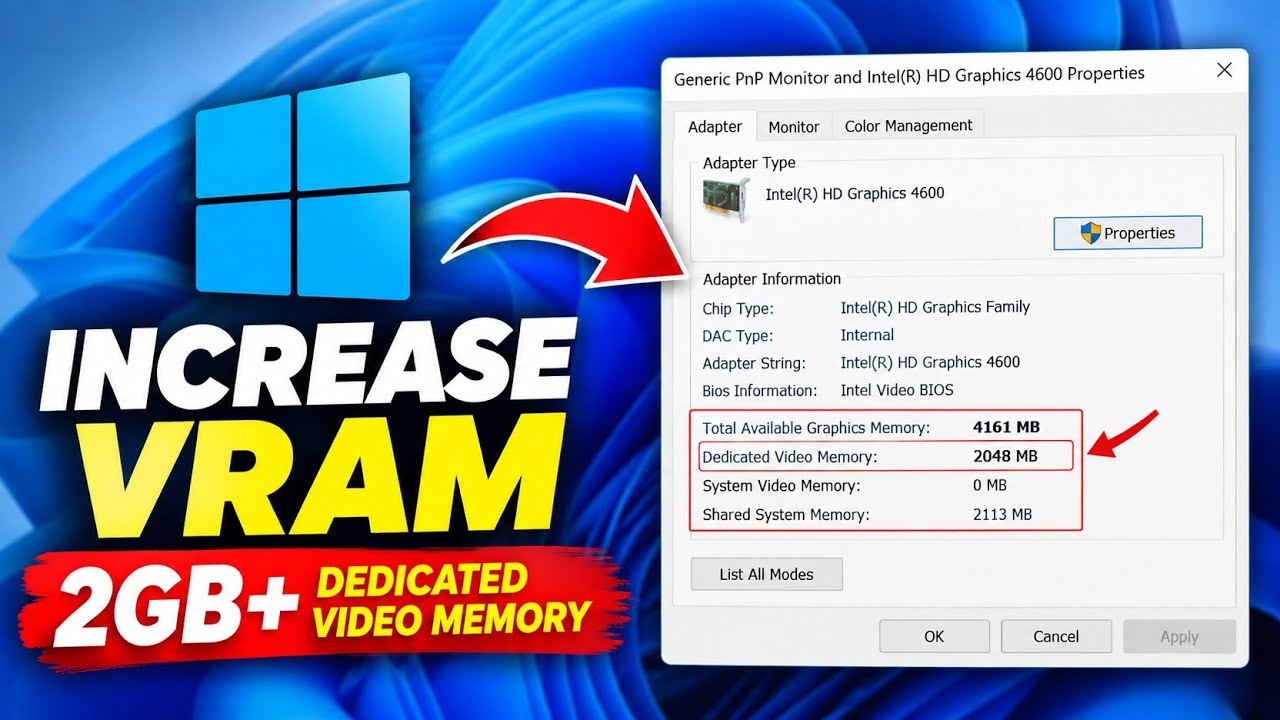
Learn how to increase reported VRAM on Intel HD Graphics without software using Registry Editor, plus what this means for FPS