

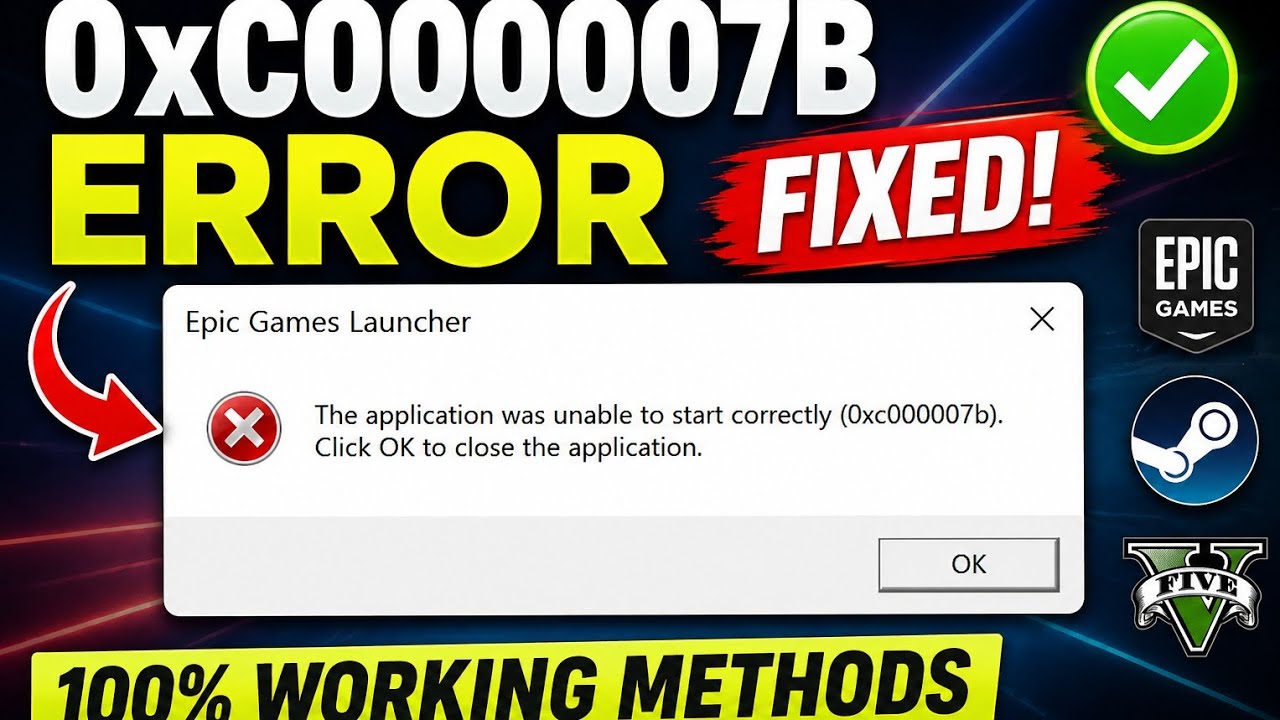
How to Fix 0xc00007b Error in Windows 11/10
Fix 0xc00007b application error in Windows 10 & 11 using SFC Scan, DirectX and Visual C++ Redistributable. Easy 2026 working guide.
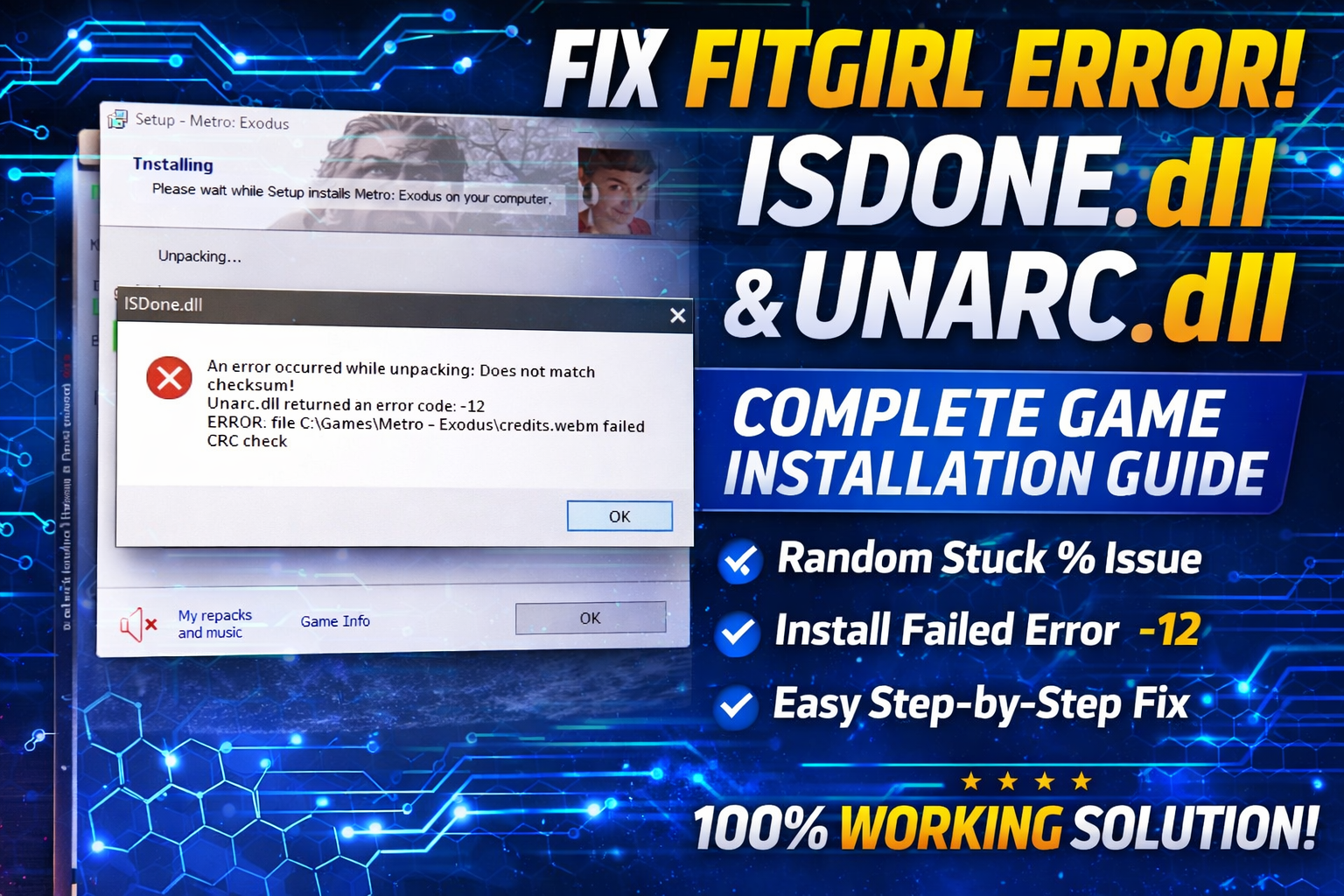
Fix FitGirl ISDone.dll & Unarc.dll error during game installation. Solve game stuck at random % with working 2026 methods.
THE SHORT VERSION
Fix FitGirl ISDone.dll & Unarc.dll error during game installation. Solve game stuck at random % with working 2026 methods.
If you are facing the FitGirl Setup ISDone.dll or Unarc.dll error while installing a game and your installation gets stuck at a random percentage, don’t worry. This is a very common problem during game installation, especially with large compressed files.
In this guide, I will show you step-by-step methods to fix ISDone.dll and Unarc.dll errors safely and properly.
ISDone.dll and Unarc.dll errors usually appear when:
• Game installation files are corrupted
• RAM is insufficient
• Virtual memory is low
• Antivirus blocks setup files
• Hard disk has bad sectors
• Required Visual C++ packages are missing
These errors may show messages like:
• ISDone.dll error
• Unarc.dll returned error code -1
• Installation stopped at random %
Sometimes the issue is temporary.
Try installing again.
Antivirus can block setup extraction files.
⚠ Turn antivirus back on after installation.
Low virtual memory causes this error.
3.**** Click Performance → Settings
Initial size: 4096
Maximum size: 8192 (or higher if RAM is low)
Click OK and restart PC.
Missing Microsoft Visual C++ redistributables can cause DLL errors.
If DLL files are missing or corrupted, download them and place them in:
C:\Windows\System32
C:\Windows\SysWOW64
Download ISDone.dll & Unarc.dll
Hard drive errors can also cause installation failure.
Open Command Prompt as Administrator and run:
chkdsk C: /f /r
Press Y and restart your computer.
This will scan and fix disk errors automatically.
• Make sure you have enough free storage space
• Close background apps during installation
• Do not install games on corrupted drives
• Always install software from trusted and legal sources
The ISDone.dll and Unarc.dll errors are usually caused by memory issues, corrupted files, or missing system components. By following the methods above, you should be able to fix the problem and complete your game installation successfully.
If this guide helped you, check out our other gaming error fixes on the website.
For a complete step-by-step visual guide, watch the full video here:
Each resource is clearly labelled and opens on its destination page. Nothing downloads automatically.
Download ISDone.dll & Unarc.dllInstall Required Visual C++ PackagesA step looks different? Report a correction. Guidance is general and does not replace your device manufacturer’s advice.
KEEP YOUR MOMENTUM
Fix 0xc00007b application error in Windows 10 & 11 using SFC Scan, DirectX and Visual C++ Redistributable. Easy 2026 working guide.
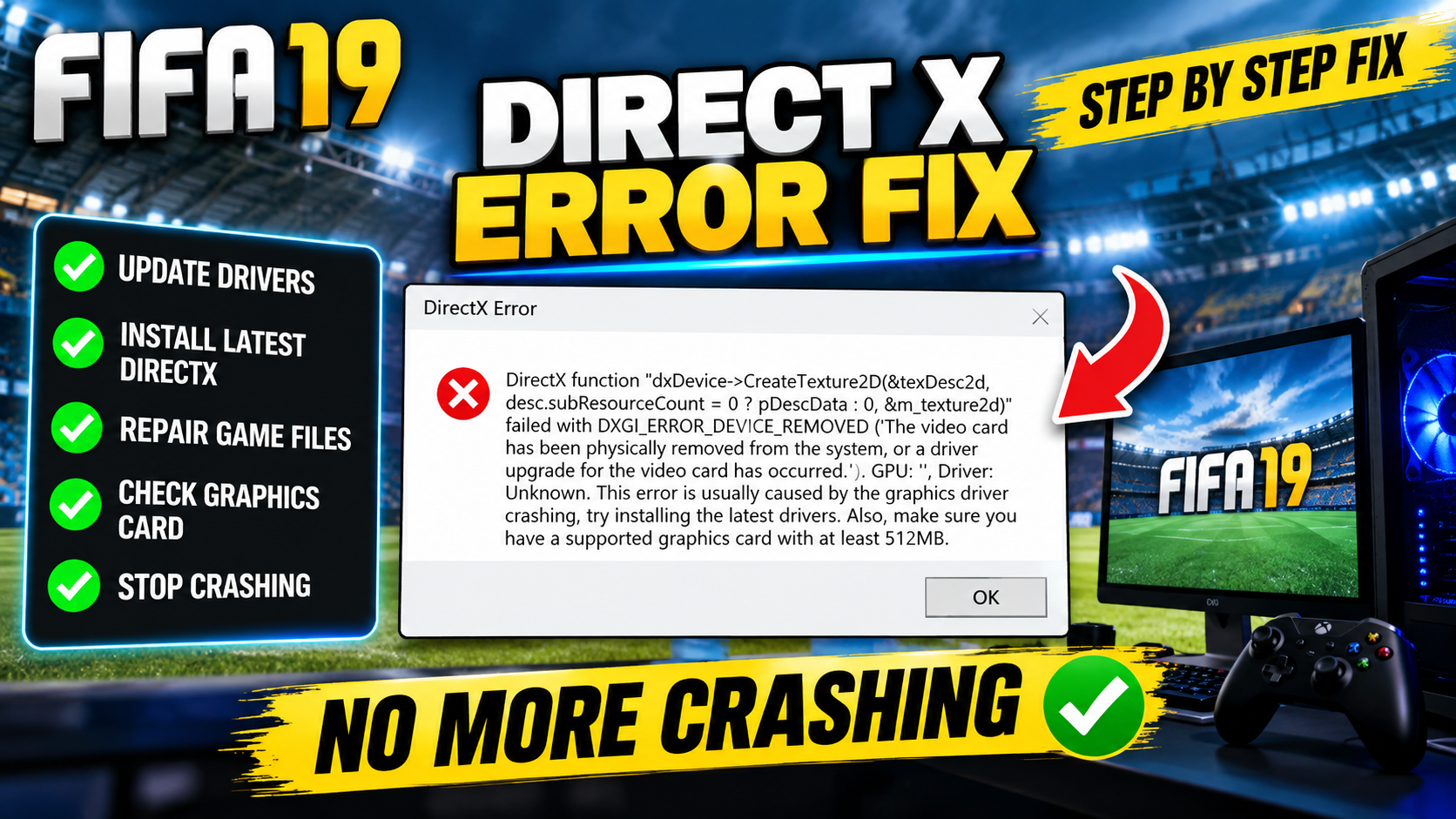
Fix FIFA 19 DirectX GetDeviceRemovedReason error on PC. Step-by-step registry fix to stop crashes on Windows 10 & 11.
Fix 100% Disk Usage in Windows 10/11 with easy steps. Disable services, optimize drive, and boost PC performance quickly and safely.