

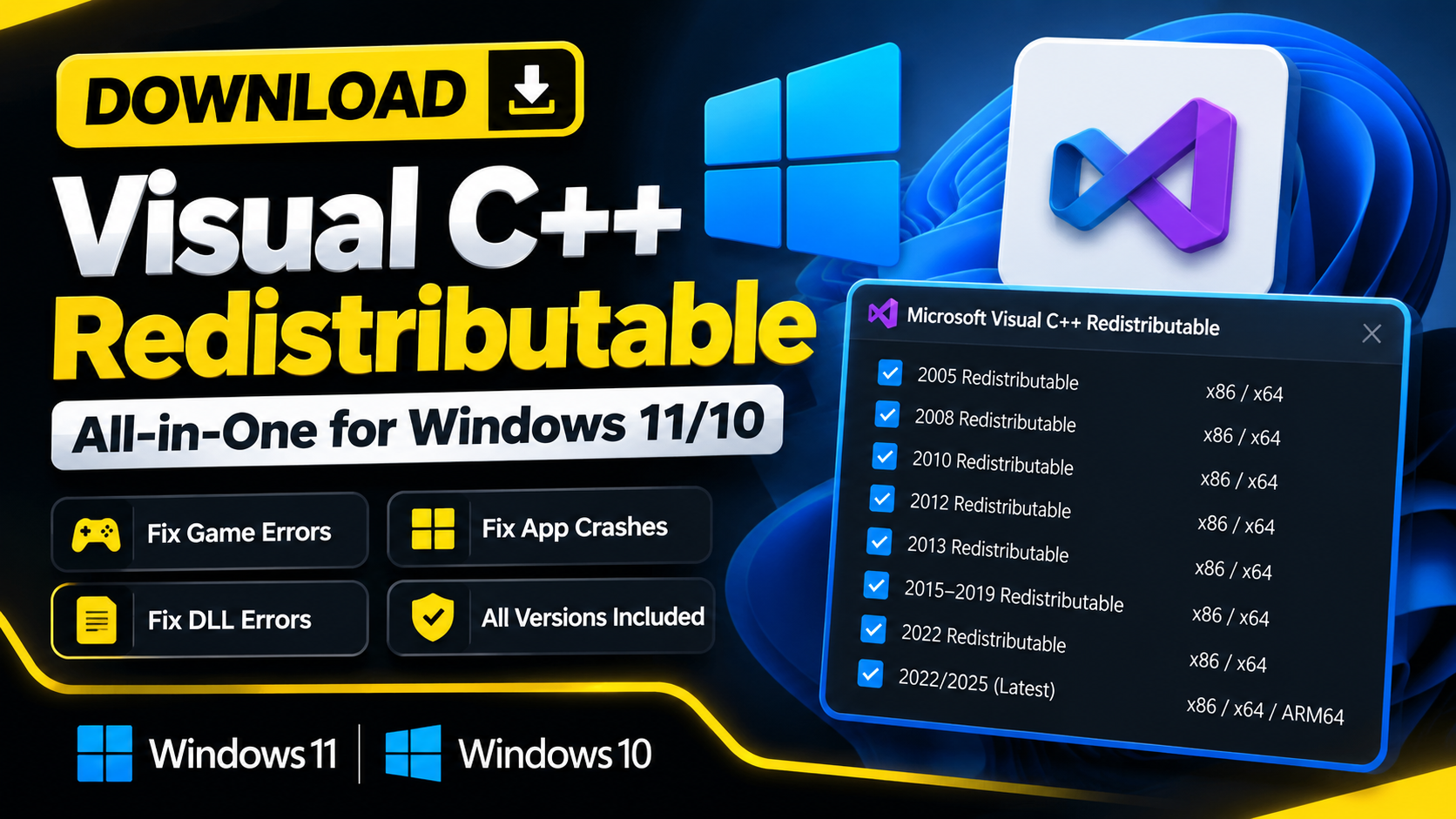
Download Visual C++ Redistributable Runtimes All-in-One for Windows 11/10 (Latest)
Download Visual C++ Redistributable Runtimes All-in-One for Windows 11/10. Fix missing DLL errors, game crashes, and software issues easily.
Download the official Microsoft DirectX End-User Runtime Web and Offline installers for legacy game components, missing DLLs, and launch errors.
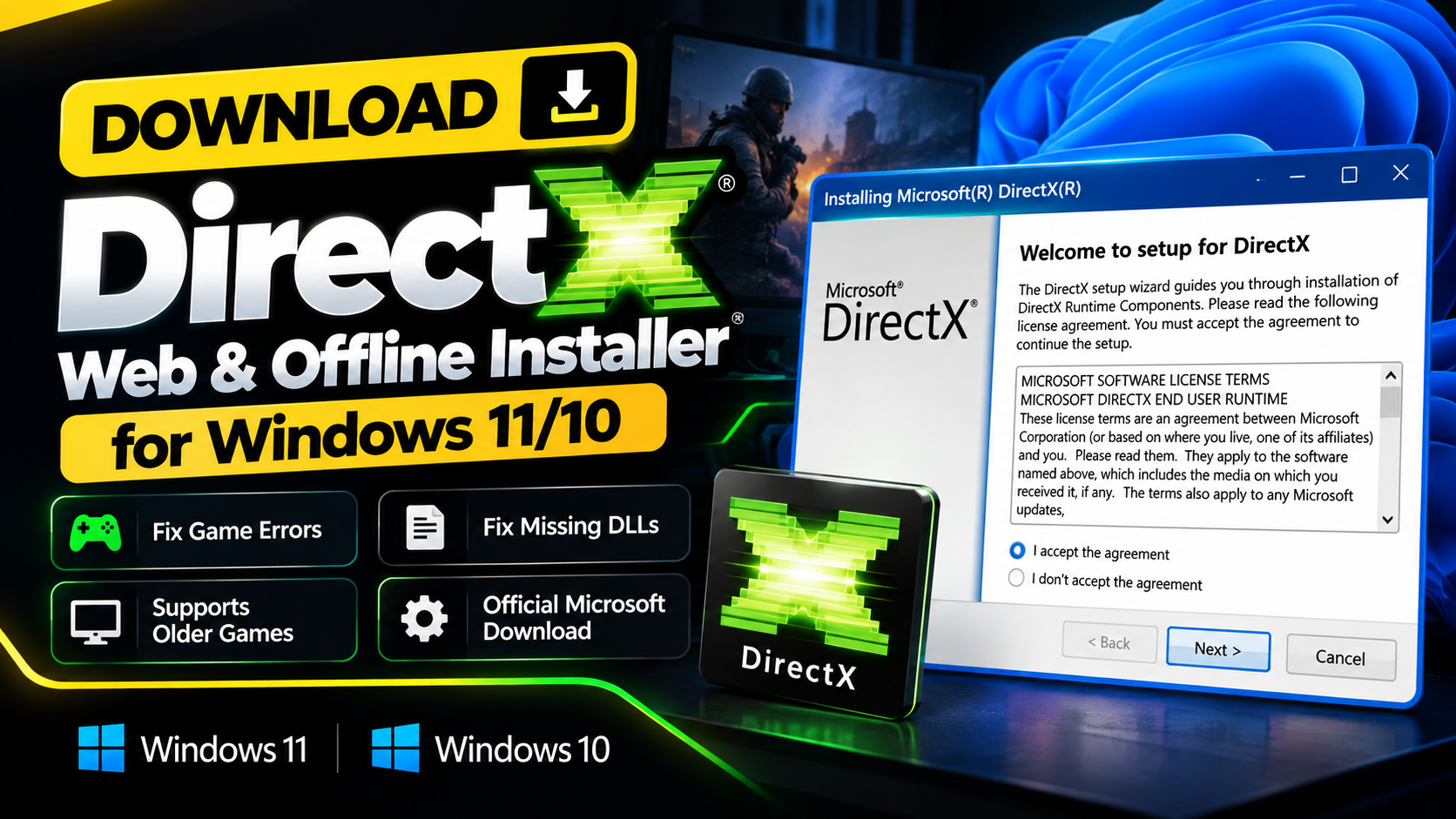
THE SHORT VERSION
Use Microsoft's DirectX End-User Runtime when an older game needs legacy D3DX, XInput, XAudio, or related DirectX components.
If a game refuses to launch, shows a missing DirectX DLL error, or complains about components such as D3DX, XInput, or XAudio, the Microsoft DirectX End-User Runtime may help.
Windows already includes its core DirectX runtime.
The DirectX End-User Runtime packages available from Microsoft do not replace or downgrade the DirectX version built into Windows.
Instead, they install additional legacy components required by some older games and applications, including technologies such as:
Microsoft provides two useful options.
The Web Installer is a small setup program that downloads the required runtime components during installation.
Use it when:
The offline package contains the complete redistributable legacy runtime package.
Use it when:
Use the official Microsoft download links in the Resources & downloads section of this guide.
Avoid random DLL websites or modified DirectX installers.
dxwebsetup.exe.DXSETUP.exe.The DirectX End-User Runtime may help with older games or applications that report missing legacy DirectX components.
Common examples can include:
However, not every DirectX-related crash is caused by missing runtime components.
Graphics-driver crashes, unsupported GPUs, damaged game files, and hardware problems require separate troubleshooting.
No.
Modern versions of Windows include their supported core DirectX components as part of Windows itself.
This installer mainly provides legacy side-by-side runtime libraries needed by some older software.
Use the Web Installer first if:
Use the Offline Runtime if:
The official Microsoft packages are the recommended source.
Always check that you are downloading from Microsoft rather than from a third-party mirror.
If the game still crashes after installing the runtime:
A DirectX Runtime installation will not fix every graphics-related crash.
Yes. Windows includes its core DirectX runtime. These End-User Runtime packages mainly provide older optional components required by some legacy games and applications.
The Web Installer downloads required files during setup. The Offline Runtime package contains the redistributable legacy components in one larger download.
It can fix errors caused by missing legacy DirectX runtime libraries supported by the package.
No. Use the official Microsoft runtime installer rather than downloading DLL files individually from unknown websites.
The Microsoft DirectX End-User Runtime is useful when an older game or application depends on legacy DirectX components that are not otherwise available on the system.
Start with the Web Installer. If it fails or you need an offline setup, use Microsoft’s full offline runtime package.
For other Windows, game, DLL, and runtime errors, explore the related FixIt Zone guides and Toolbox.
Each resource is clearly labelled and opens on its destination page. Nothing downloads automatically.
DirectX End-User Runtime Web InstallerOfficial downloadDirectX End-User Runtimes (June 2010)Official offline downloadA step looks different? Report a correction. Guidance is general and does not replace your device manufacturer’s advice.
KEEP YOUR MOMENTUM
Download Visual C++ Redistributable Runtimes All-in-One for Windows 11/10. Fix missing DLL errors, game crashes, and software issues easily.

Download the ULTIMATE GFX PACK with 1600+ assets! Includes thumbnails, overlays, backgrounds, and more. Preview & download now.
Fix 100% Disk Usage in Windows 10/11 with easy steps. Disable services, optimize drive, and boost PC performance quickly and safely.